

What is Email Execution?
Email execution allows you to trigger an agent execution by sending an email to a unique email address. The email subject, body, and any attachments will be used as input for the execution. This is useful when you want to integrate an agent into an email-based workflow without writing any code or calling the API directly.Enabling Email Execution
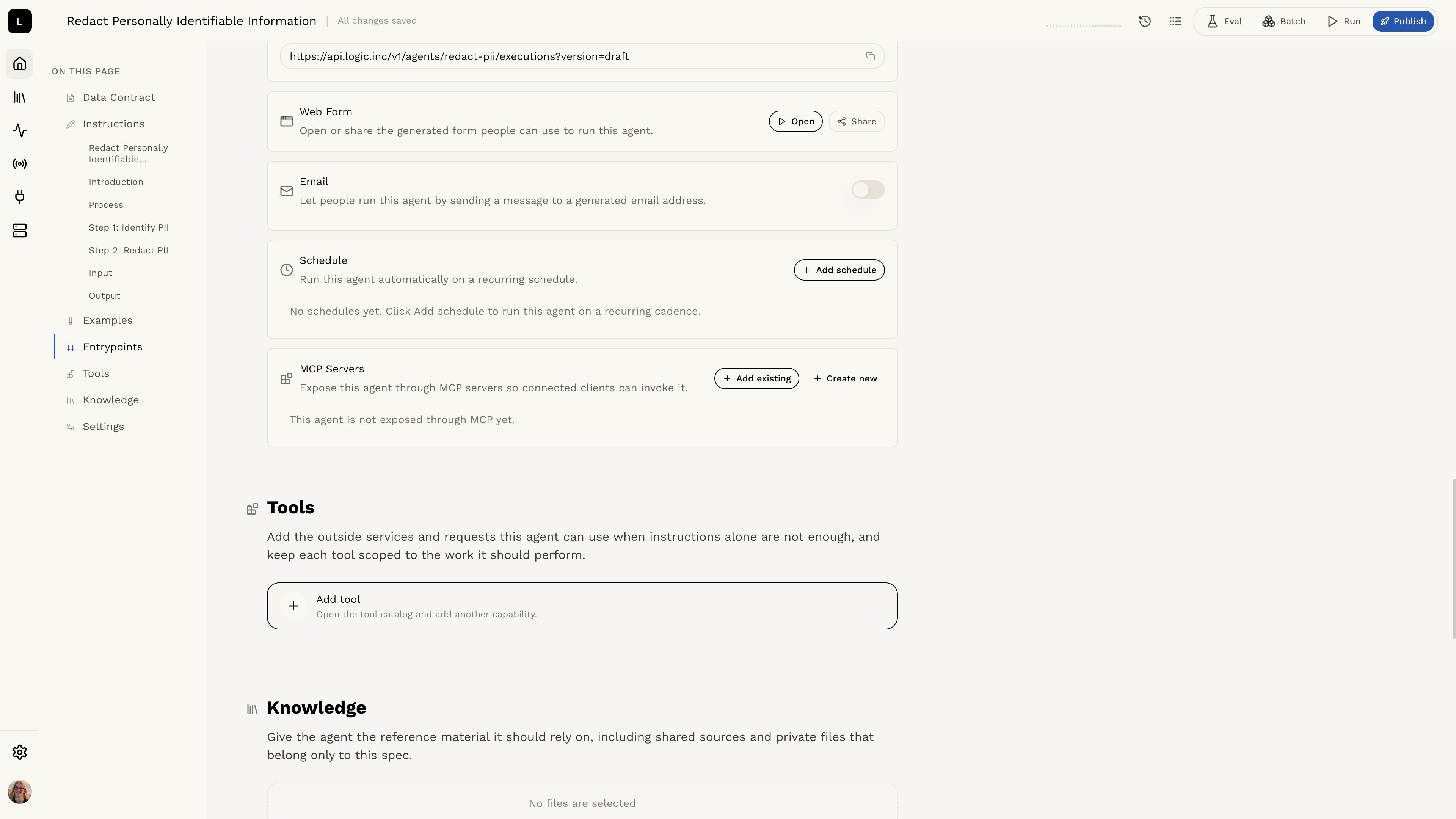
To enable email execution for an agent, follow these steps:- Open the agent in the editor.
- Navigate to the Entrypoints section.
- Find the Email card.
- Toggle the switch on the Email card to enable it.
Your Execution Email Address
After enabling email execution, you can view and copy your agent’s execution email address from the Email card in the Entrypoints section.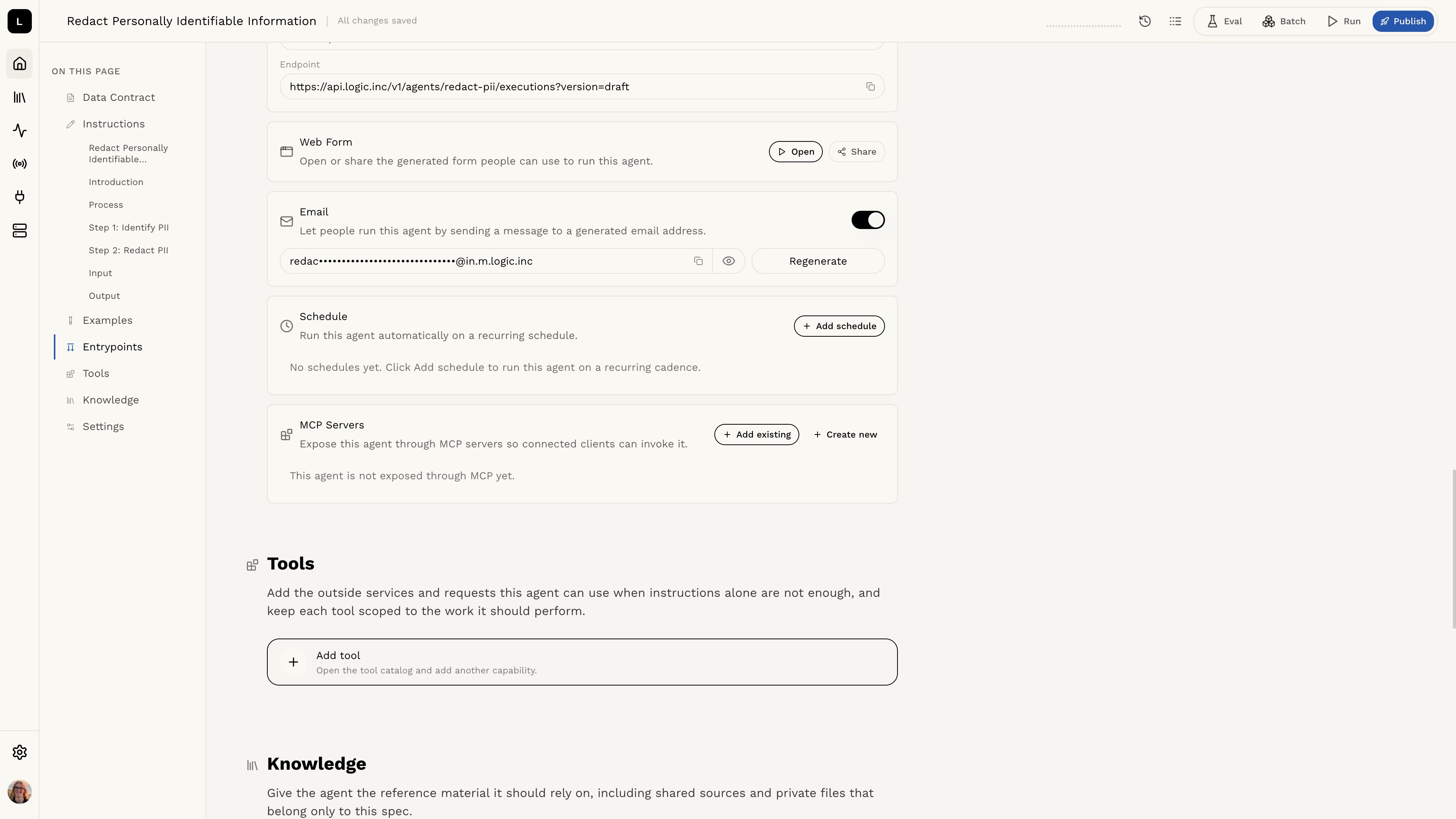
Sending an Email
To trigger an execution, send an email to your agent’s execution email address. The following parts of the email are passed as input to the agent:- Subject — the email subject line
- Body — the plain text body of the email
- Attachments — any files attached to the email
Targeting a Specific Version
By default, the live (published) version of the agent will be executed. To execute a different version, add one of the following tags to the email subject line:[draft]— Execute the current draft version[<version-uuid>]— Execute a specific version by its UUID
Process this report [draft] would execute the current draft version of the agent.
Attachments
Email execution supports file attachments. Attachments are uploaded and passed to the agent as part of the execution input.The total size of all attachments must not exceed 25 MB. The email body
(excluding attachments) must not exceed 100 KB.
Viewing Execution Results
Executions triggered via email appear in the agent’s execution history alongside API-triggered executions. You can view the input, output, and status of each execution in the agent’s Execution history. If an email fails validation (for example, if the agent has no published version), a failed execution record will still appear in the history so you can diagnose the issue.Regenerating the Email Address
If you need to replace your agent’s execution email address, click the Regenerate button on the Email card in the Entrypoints section.Disabling Email Execution
To disable email execution, toggle the switch on the Email card off. This will revoke the current email address and prevent any further email-triggered executions.Requirements
The agent must have a published version for email execution to work, unless you are targeting the draft version by adding[draft] in the subject.
Learn more about publishing and versioning in the Spec
History section.