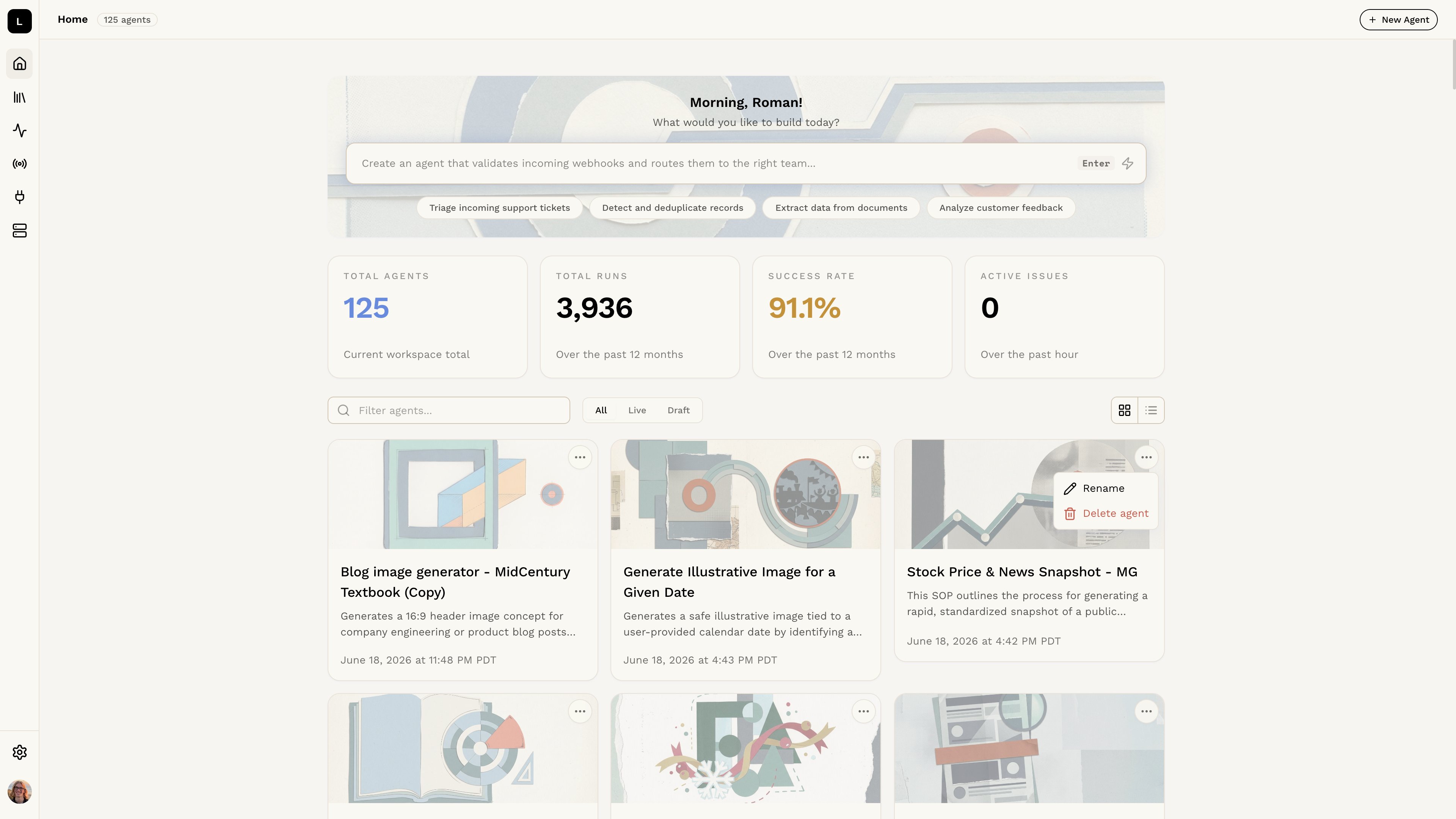

Creating an Agent Manually
What do you need the Logic API to do? Write a description of the task you want to accomplish. In the example of an image analysis agent, the description might be:Editing Your Agent
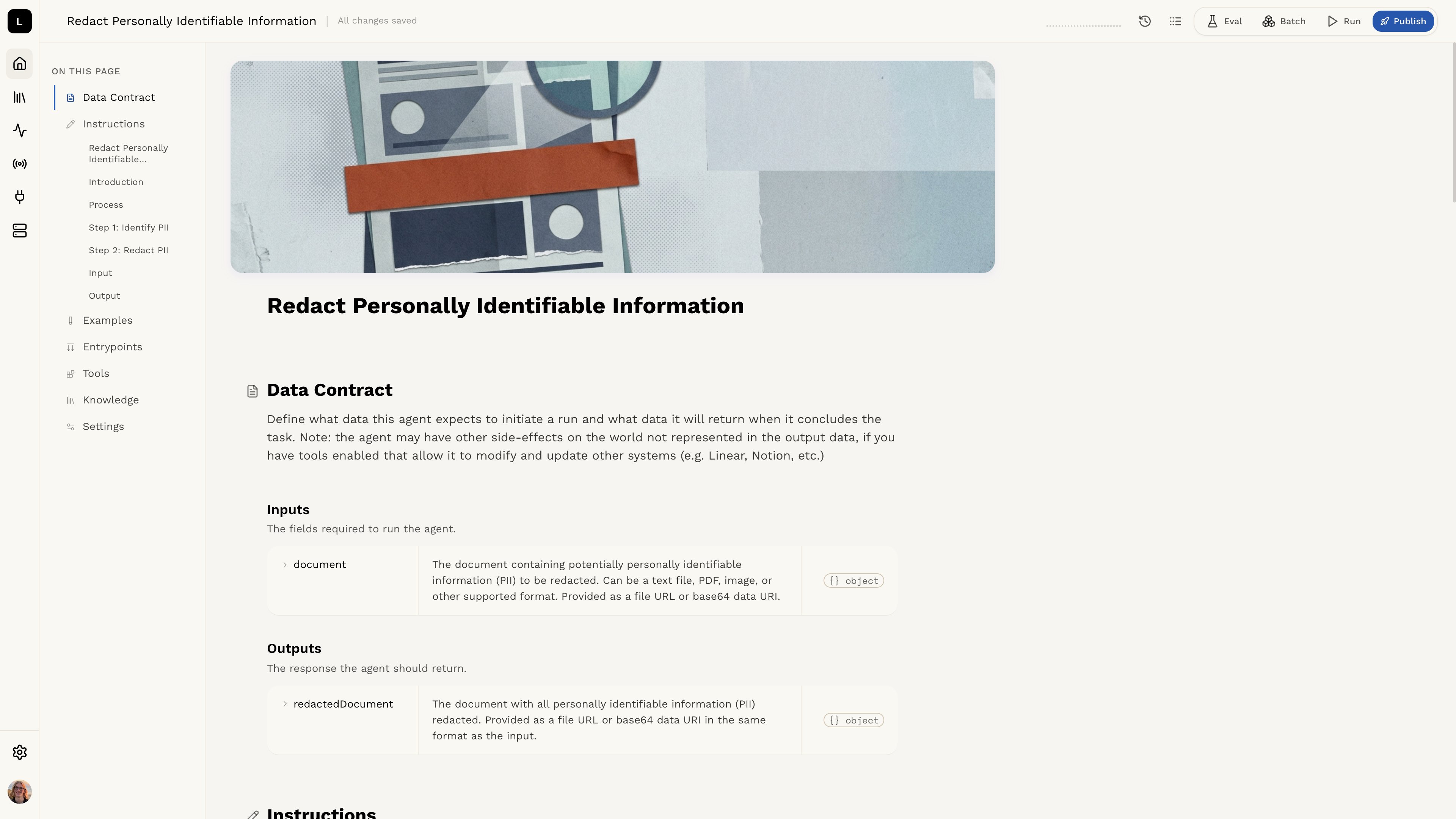
Step 1: Access the Logic dashboard
Open the Logic dashboard and log in to your account. Select the agent you want to edit from the list of agents. If you have just generated an agent from a description, it will already be opened in the agent editor.Step 2: Edit your agent
You can now edit the agent to suit your specific use case. Feel free to add, remove, or modify sections as needed. For example, you might include more detail about the image analysis process or add input/output examples.Step 3: Use text formatting
Within the Instructions section you can use text formatting to make your agent more readable. For example, you can use bullet points to list the items you want the Logic API to include in its analysis. You can also use headings to separate different sections of your agent. For example, you might have a section for the input and a section for the output. Formatting options such as headings and lists are available as you edit the instructions, helping you organize your agent and make it easier to read.If you want to learn more about what makes a good agent, check out the What
Makes a Good Agent? section.
Finishing Your Agent