

Creating Your First MCP Server
This guide will walk you through creating an MCP server and connecting it to an AI platform.Prerequisites
Before you begin, make sure you have:- Organization administrator access (for creating MCP servers)
- An MCP-compatible AI platform (such as Claude, ChatGPT, or Codex)
Step 1: Navigate to MCP Servers
Click the Servers icon (the stacked-servers icon) in the left sidebar to open the MCP Servers page.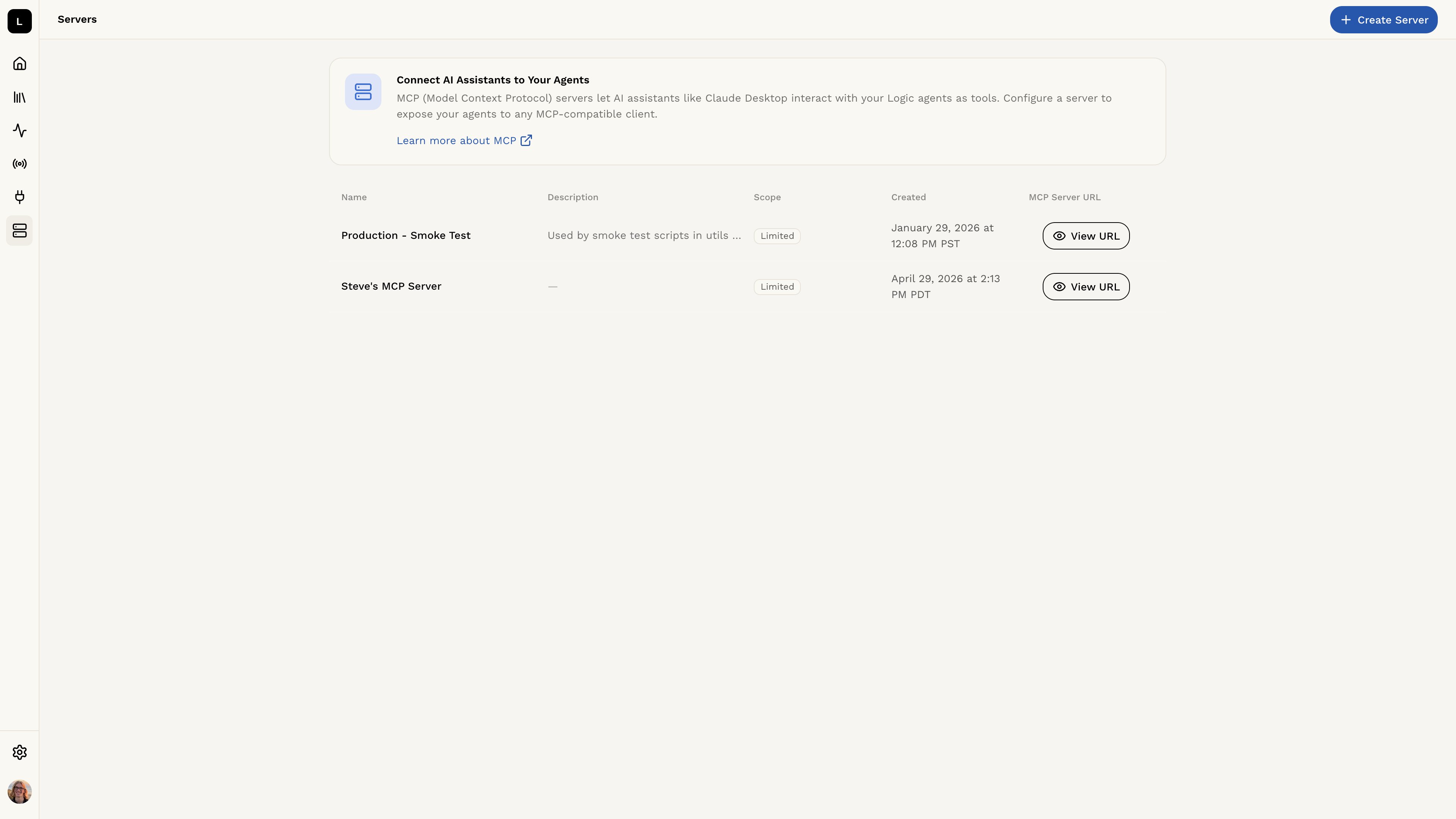
Step 2: Create a New MCP Server
Click the Create Server button to begin setup.Configure Your Server
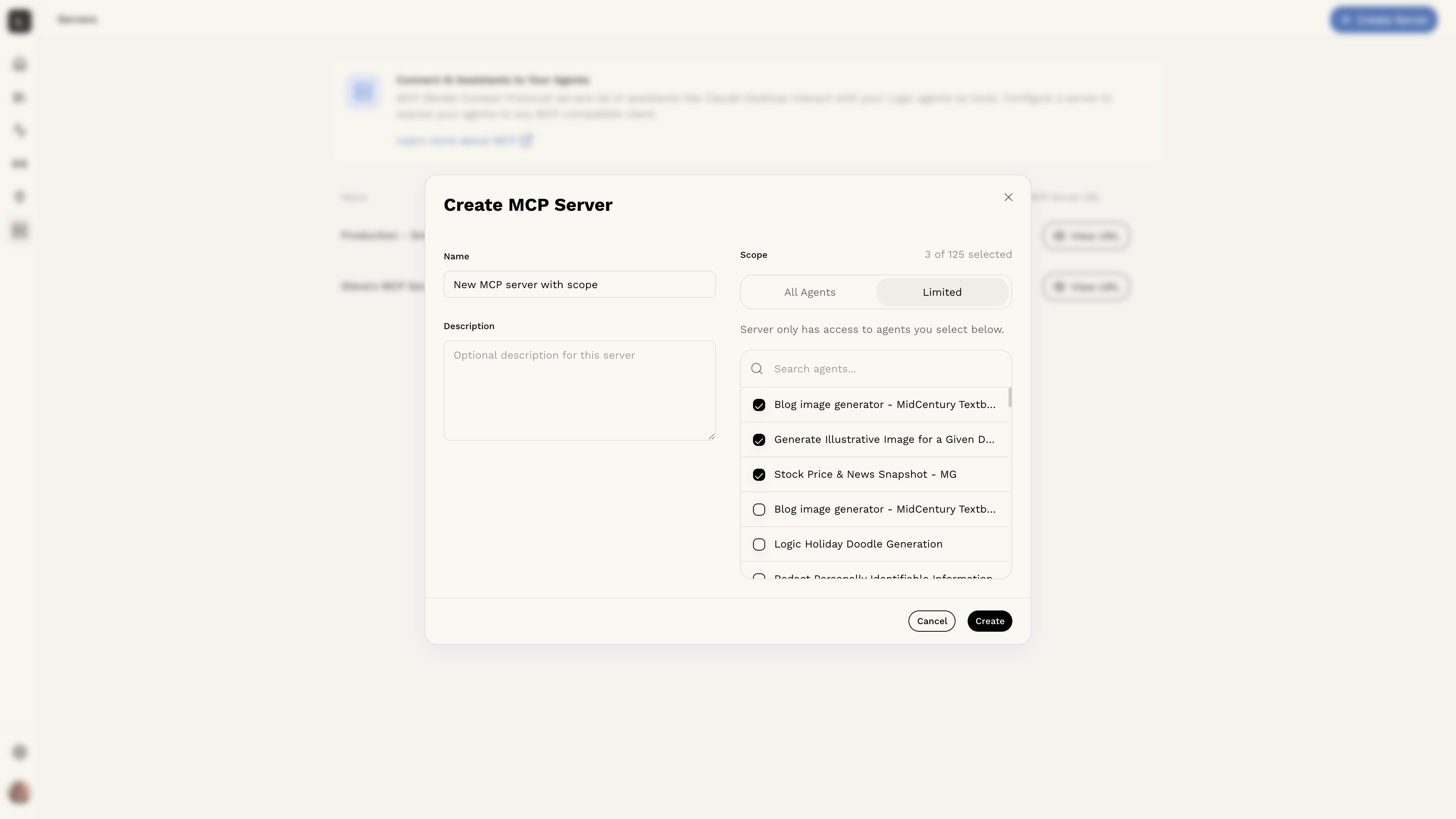
You’ll need to provide: Server Name (required)- A descriptive name for this MCP server (1-100 characters)
- Example: “Engineering Team Agents” or “Production Workflows”
- Additional context about what this server provides (up to 500 characters)
- This helps team members understand the server’s purpose
- Choose how this server accesses your agents:
- All Agents: All current and future agents in your organization
- Limited: Only specific agents you select
Not sure which scope to choose? See the Agent Scope guide
for detailed recommendations.
- Choose what connected clients are allowed to do:
- Execute only: Clients can discover, run, and inspect your agents
- Author: Clients can also create and edit agents on your behalf
Permission controls what a client can do; scope controls which agents it
can reach. See Built-in Tools for the full breakdown.
Select Agents (Limited Scope Only)
If you chose Limited scope, select which agents this server can access. You can:- Search for agents by name
- Select multiple agents
- Add or remove agents later
Step 3: Copy Your Server URL
After creating the server, Logic generates a unique connection URL that AI platforms use to connect to your MCP server. Copy the URL - you’ll need it to configure your AI platform in the next step.Step 4: Connect to an AI Platform
Now that you have your MCP server URL, connect it to an AI platform:Claude Desktop
Configure Claude desktop app
Claude Code
Set up Claude Code CLI
Codex
Set up Codex CLI
Cursor
Set up the Cursor editor
VS Code
Set up VS Code with Copilot
ChatGPT
Set up ChatGPT with developer mode
Step 5: Test Your Connection
Once connected, test that your AI platform can access your Logic agents:- Open your AI platform
- Look for your Logic agents in the available tools/functions
- Try executing a simple Logic agent
- Verify you receive the expected response
Next Steps
Now that your MCP server is running:- Learn about Agent Scope - Optimize which agents are accessible
- Explore Async Tasks - Handle long-running workflows efficiently
Need help? Check the platform-specific integration guides for detailed setup
instructions and troubleshooting.