> ## Documentation Index
> Fetch the complete documentation index at: https://docs.logic.inc/llms.txt
> Use this file to discover all available pages before exploring further.
# MCP Quick Start
> Create your first Logic MCP server in minutes
## Creating Your First MCP Server
This guide will walk you through creating an MCP server and connecting it to an AI platform.
### Prerequisites
Before you begin, make sure you have:
* Organization administrator access (for creating MCP servers)
* An MCP-compatible AI platform (such as Claude, ChatGPT, or Gemini)
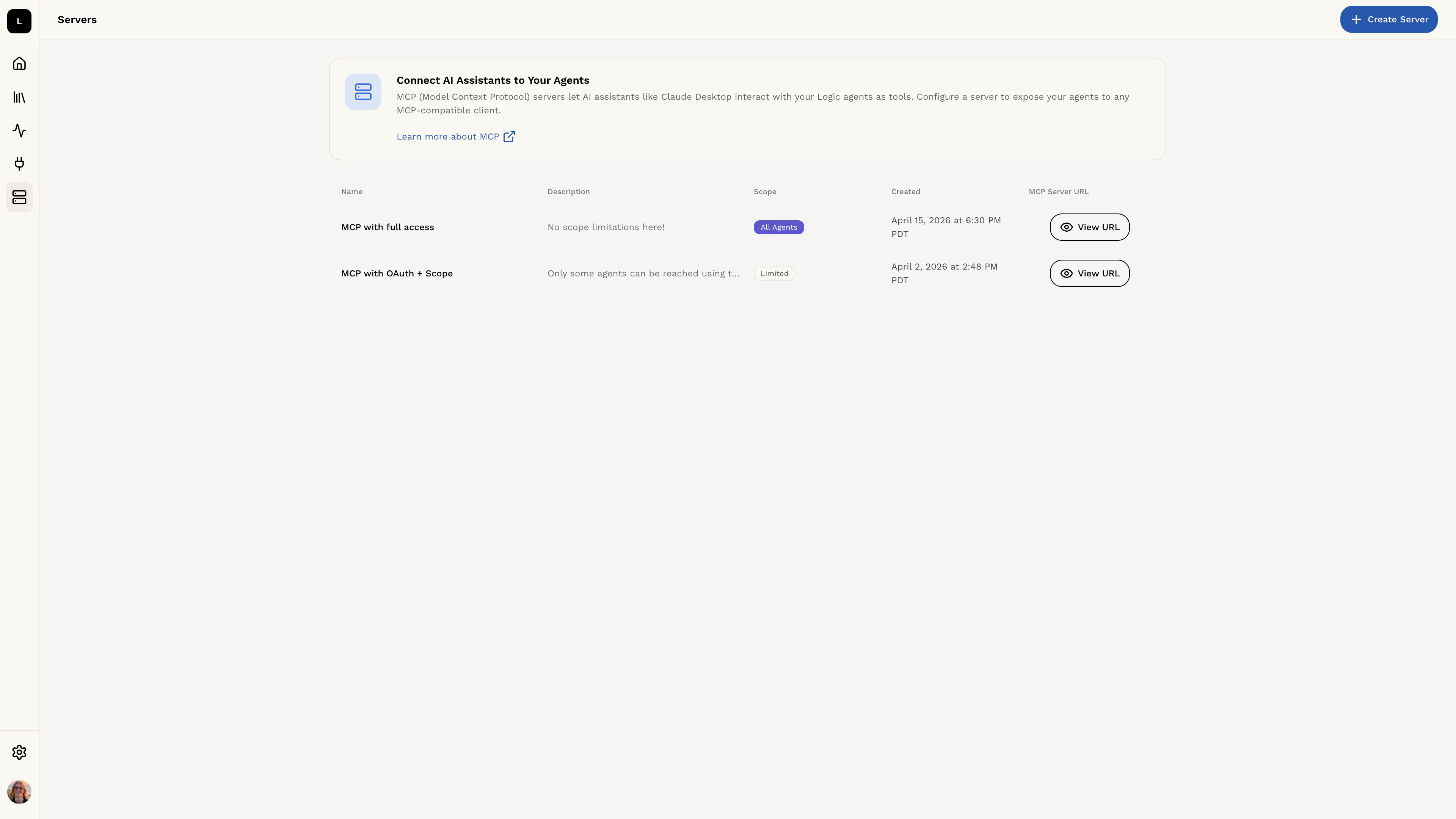
## Step 1: Navigate to MCP Server Settings
1. Click the **gear icon** in the bottom left corner of the Logic interface to open Organization Settings
2. Navigate to the "MCP Servers" tab
 ## Step 2: Create a New MCP Server
Click the **Create MCP Server** button to begin setup.
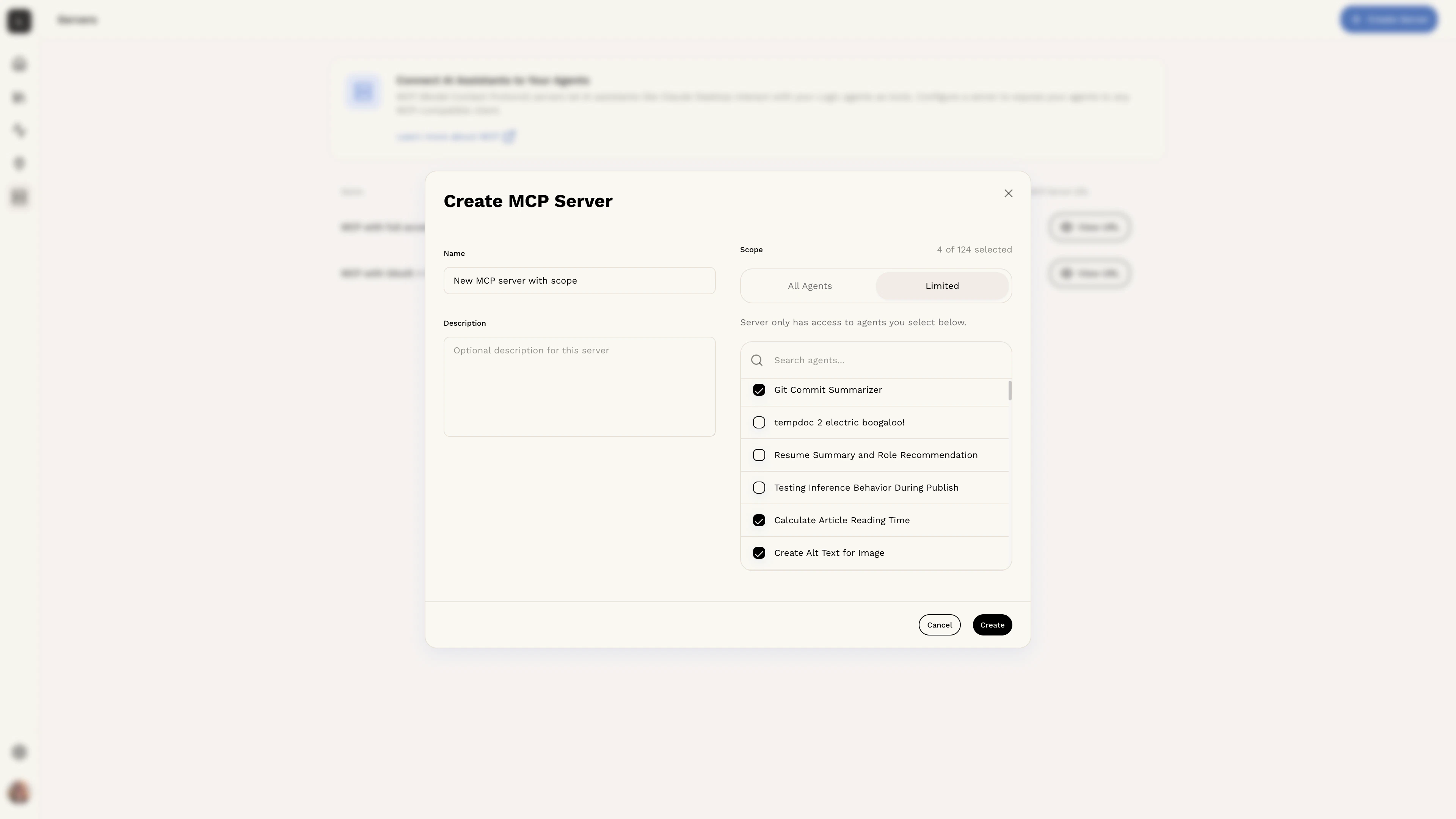
### Configure Your Server
You'll need to provide:
**Server Name** (required)
* A descriptive name for this MCP server (1-100 characters)
* Example: "Engineering Team Agents" or "Production Workflows"
**Description** (optional)
* Additional context about what this server provides (up to 500 characters)
* This helps team members understand the server's purpose
**Agent Scope** (required)
* Choose how this server accesses your agents:
* **Full Organization**: All current and future agents in your organization
* **Limited**: Only specific agents you select
Not sure which scope to choose? See the [Agent Scope](/mcp/agent-scope)
guide for detailed recommendations.
### Select Agents (Limited Scope Only)
If you chose Limited scope, select which agents this server can access. You can:
* Search for agents by name
* Select multiple agents
* Add or remove agents later
## Step 2: Create a New MCP Server
Click the **Create MCP Server** button to begin setup.
### Configure Your Server
You'll need to provide:
**Server Name** (required)
* A descriptive name for this MCP server (1-100 characters)
* Example: "Engineering Team Agents" or "Production Workflows"
**Description** (optional)
* Additional context about what this server provides (up to 500 characters)
* This helps team members understand the server's purpose
**Agent Scope** (required)
* Choose how this server accesses your agents:
* **Full Organization**: All current and future agents in your organization
* **Limited**: Only specific agents you select
Not sure which scope to choose? See the [Agent Scope](/mcp/agent-scope)
guide for detailed recommendations.
### Select Agents (Limited Scope Only)
If you chose Limited scope, select which agents this server can access. You can:
* Search for agents by name
* Select multiple agents
* Add or remove agents later
 ## Step 3: Copy Your Server URL
After creating the server, Logic generates a unique connection URL that AI platforms use to connect to your MCP server.
Copy the URL - you'll need it to configure your AI platform in the next step.
## Step 4: Connect to an AI Platform
Now that you have your MCP server URL, connect it to an AI platform:
Configure Claude desktop app
Set up Claude Code CLI
Set up Codex CLI
Set up ChatGPT with developer mode
## Step 5: Test Your Connection
Once connected, test that your AI platform can access your Logic agents:
1. Open your AI platform
2. Look for your Logic agents in the available tools/functions
3. Try executing a simple Logic agent
4. Verify you receive the expected response
## Next Steps
Now that your MCP server is running:
* **Learn about [Agent Scope](/mcp/agent-scope)** - Optimize which agents are accessible
* **Explore [Async Tasks](/mcp/async-tasks)** - Handle long-running workflows efficiently
Need help? Check the platform-specific integration guides for detailed setup
instructions and troubleshooting.
## Step 3: Copy Your Server URL
After creating the server, Logic generates a unique connection URL that AI platforms use to connect to your MCP server.
Copy the URL - you'll need it to configure your AI platform in the next step.
## Step 4: Connect to an AI Platform
Now that you have your MCP server URL, connect it to an AI platform:
Configure Claude desktop app
Set up Claude Code CLI
Set up Codex CLI
Set up ChatGPT with developer mode
## Step 5: Test Your Connection
Once connected, test that your AI platform can access your Logic agents:
1. Open your AI platform
2. Look for your Logic agents in the available tools/functions
3. Try executing a simple Logic agent
4. Verify you receive the expected response
## Next Steps
Now that your MCP server is running:
* **Learn about [Agent Scope](/mcp/agent-scope)** - Optimize which agents are accessible
* **Explore [Async Tasks](/mcp/async-tasks)** - Handle long-running workflows efficiently
Need help? Check the platform-specific integration guides for detailed setup
instructions and troubleshooting.