> ## Documentation Index
> Fetch the complete documentation index at: https://docs.logic.inc/llms.txt
> Use this file to discover all available pages before exploring further.
# Knowledge Library
> Upload and manage files your agents can search during execution
 ## What is the Knowledge Library?
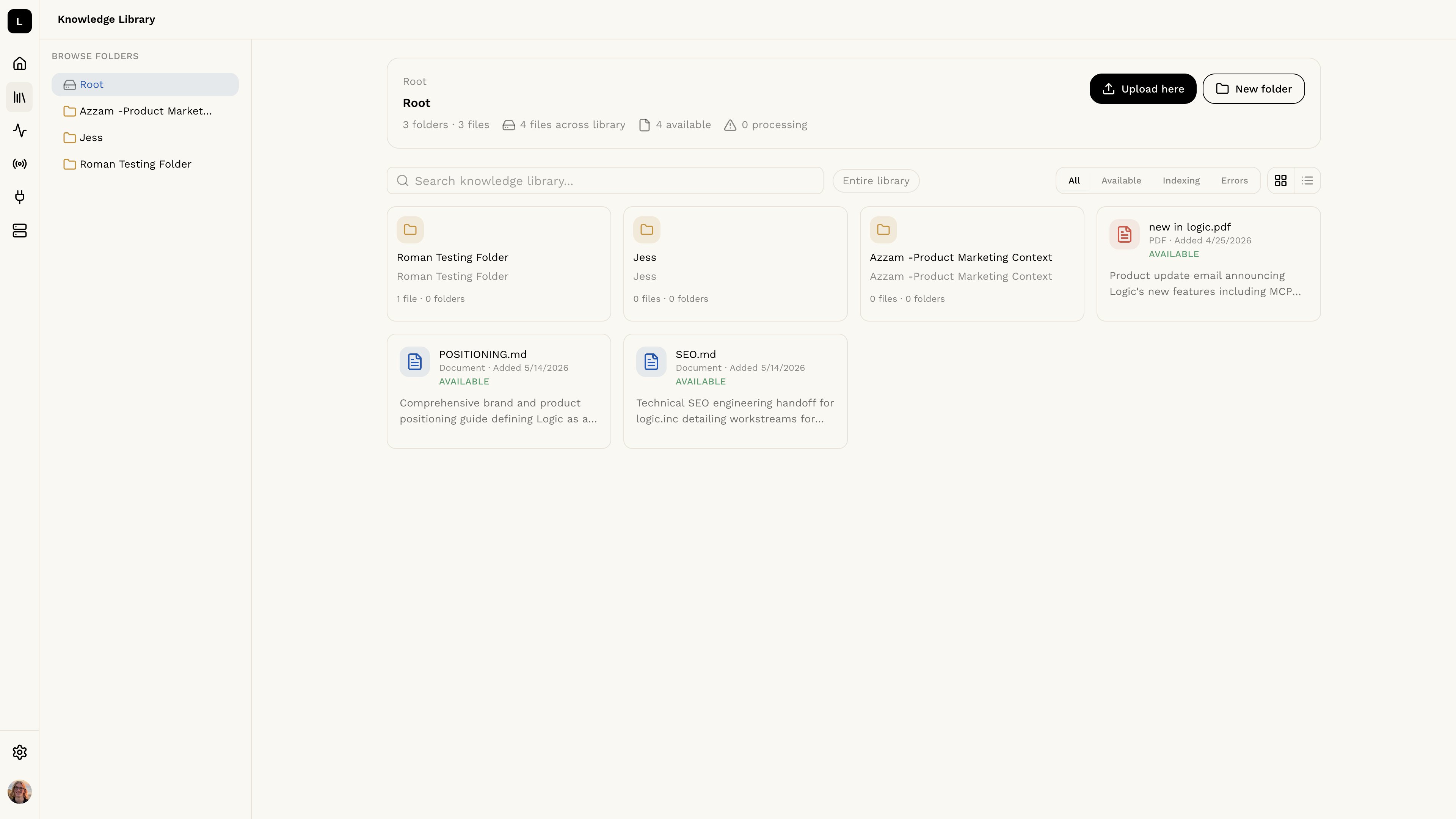
The Knowledge Library is an organization-wide file store that your agents can search and reference during execution. Upload files once, and any agent in your organization can draw on them as a knowledge source.
The Knowledge Library is not available for all organizations. If you don't see
it in your settings, contact support to learn more.
## Accessing the Knowledge Library
Click the **Knowledge Library** icon in the left sidebar to manage your organization's files.
## Uploading Files
Click the **Upload here** button in the top right to upload a file. You can also drag and drop a file directly into the library.
* **Maximum file size:** 10MB per file
* **Supported types:** All common file types are accepted
Files begin processing immediately after upload. A file must reach **Available** status before agents can search it.
## File Statuses
| Status | Meaning |
| -------------- | --------------------------------------------------------------- |
| **Processing** | The file is being indexed. It is not yet searchable. |
| **Available** | The file is fully processed and available for agents to search. |
| **Error** | Processing failed. Click the file to see the error detail. |
The page refreshes automatically while files are processing.
## Organizing with Folders
Use the **New folder** button to create folders and keep your library organized. The folder browser on the left lets you navigate between folders.
## Downloading and Deleting Files
Click any file in the library to open its detail modal. From there you can download the file or delete it.
Deletion is permanent and cannot be undone.
## Using the Knowledge Library in an Agent
To give an agent access to your library, open the agent in the editor and go to the **Knowledge** section. Under **Knowledge Library Search**, choose one of three modes:
* **Default** — Logic decides whether to search the knowledge library based on the task.
* **Entire Store** — Logic always searches the full library during execution.
* **Specific Files** — You choose exactly which files the agent can search.
Changes take effect the next time the agent is executed.
## What is the Knowledge Library?
The Knowledge Library is an organization-wide file store that your agents can search and reference during execution. Upload files once, and any agent in your organization can draw on them as a knowledge source.
The Knowledge Library is not available for all organizations. If you don't see
it in your settings, contact support to learn more.
## Accessing the Knowledge Library
Click the **Knowledge Library** icon in the left sidebar to manage your organization's files.
## Uploading Files
Click the **Upload here** button in the top right to upload a file. You can also drag and drop a file directly into the library.
* **Maximum file size:** 10MB per file
* **Supported types:** All common file types are accepted
Files begin processing immediately after upload. A file must reach **Available** status before agents can search it.
## File Statuses
| Status | Meaning |
| -------------- | --------------------------------------------------------------- |
| **Processing** | The file is being indexed. It is not yet searchable. |
| **Available** | The file is fully processed and available for agents to search. |
| **Error** | Processing failed. Click the file to see the error detail. |
The page refreshes automatically while files are processing.
## Organizing with Folders
Use the **New folder** button to create folders and keep your library organized. The folder browser on the left lets you navigate between folders.
## Downloading and Deleting Files
Click any file in the library to open its detail modal. From there you can download the file or delete it.
Deletion is permanent and cannot be undone.
## Using the Knowledge Library in an Agent
To give an agent access to your library, open the agent in the editor and go to the **Knowledge** section. Under **Knowledge Library Search**, choose one of three modes:
* **Default** — Logic decides whether to search the knowledge library based on the task.
* **Entire Store** — Logic always searches the full library during execution.
* **Specific Files** — You choose exactly which files the agent can search.
Changes take effect the next time the agent is executed.