> ## Documentation Index
> Fetch the complete documentation index at: https://docs.logic.inc/llms.txt
> Use this file to discover all available pages before exploring further.
# Using the Logic Dashboard
> How to use the Logic dashboard to manage your agents
## Using the Logic Dashboard
The [Logic dashboard](https://app.logic.inc) is a web app for writing and managing your agents. It provides a user-friendly interface for creating, testing, and executing agents. In this section, we will cover the basics of how to use the dashboard.
 ### Step 1: Accessing the Logic dashboard
Open the [Logic dashboard](https://app.logic.inc) and log in to your account.
You'll be given the choice to login with an email address or to continue with a Google account.
After you sign in, you will be taken directly to the dashboard.
### Step 2: Viewing the dashboard
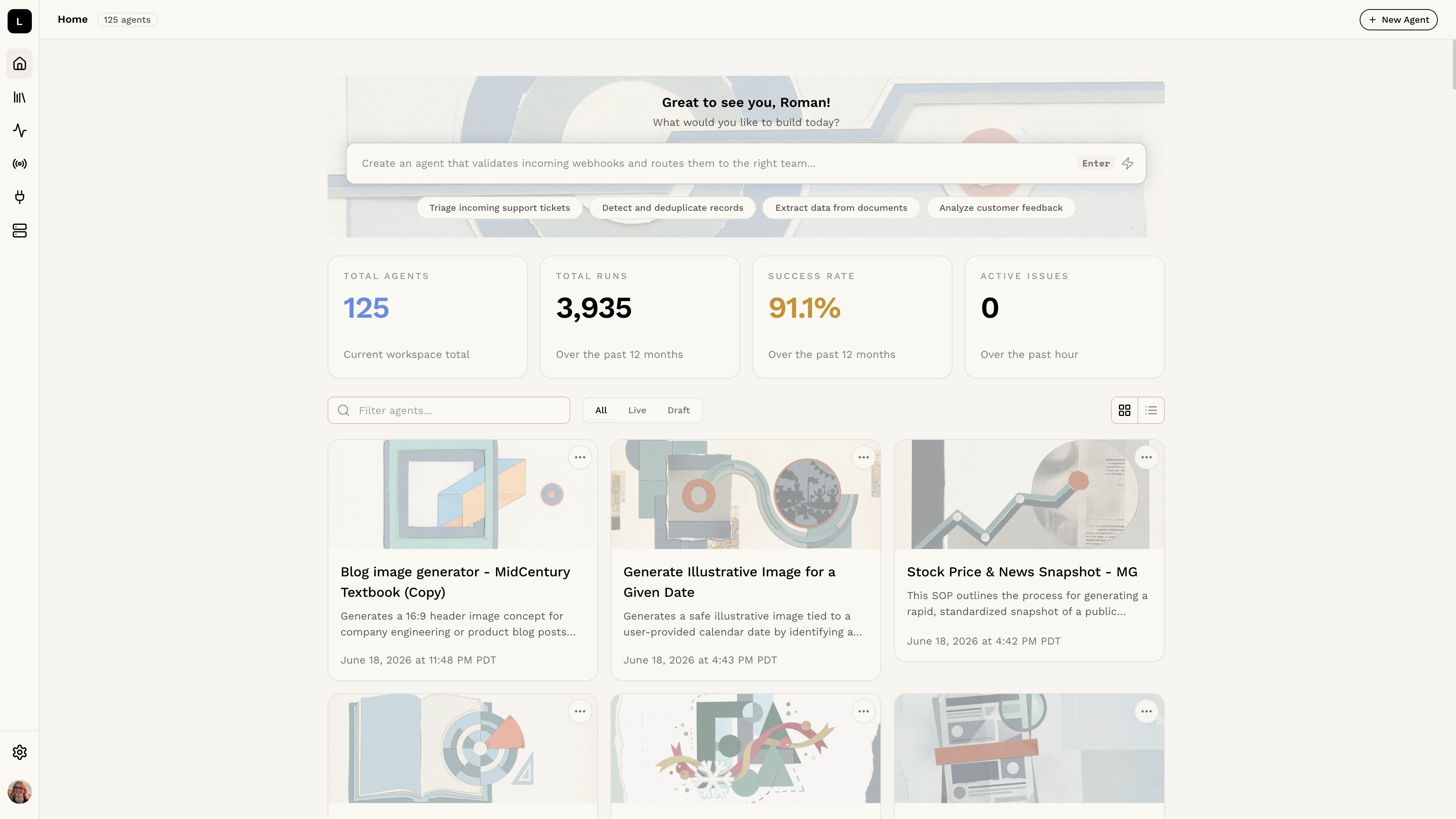
When viewing the dashboard, you will see a list of your agents. Each agent will display its name and the date it was last updated. You can click on an agent to open it in the editor.
You can create a new agent by describing what you need in the command bar at the top of the dashboard, or by clicking the **New Agent** button in the top right corner.
To manage your accounts and API keys, click the **gear icon** in the bottom left corner of the dashboard to open **Organization Settings**.
To manage your personal account settings, click your **profile picture** in the bottom left corner of the dashboard to open **Account Settings**.
To sign out, open **Account Settings** and click the **Sign Out** button at the bottom of the page.
### Step 3: Creating a new agent
To learn more about how to create a new agent, check out the [Making a New
Agent](/guides/agent-editing/making-agents) section.
### Step 1: Accessing the Logic dashboard
Open the [Logic dashboard](https://app.logic.inc) and log in to your account.
You'll be given the choice to login with an email address or to continue with a Google account.
After you sign in, you will be taken directly to the dashboard.
### Step 2: Viewing the dashboard
When viewing the dashboard, you will see a list of your agents. Each agent will display its name and the date it was last updated. You can click on an agent to open it in the editor.
You can create a new agent by describing what you need in the command bar at the top of the dashboard, or by clicking the **New Agent** button in the top right corner.
To manage your accounts and API keys, click the **gear icon** in the bottom left corner of the dashboard to open **Organization Settings**.
To manage your personal account settings, click your **profile picture** in the bottom left corner of the dashboard to open **Account Settings**.
To sign out, open **Account Settings** and click the **Sign Out** button at the bottom of the page.
### Step 3: Creating a new agent
To learn more about how to create a new agent, check out the [Making a New
Agent](/guides/agent-editing/making-agents) section.