> ## Documentation Index
> Fetch the complete documentation index at: https://docs.logic.inc/llms.txt
> Use this file to discover all available pages before exploring further.
# Authorization
> How to create an API token to access the API
## Authorization
To access the Logic API, you will need to provide an authorization token. This token is used to authenticate your requests and ensure that only authorized users can access your agents.
### Step 1: Creating an API key
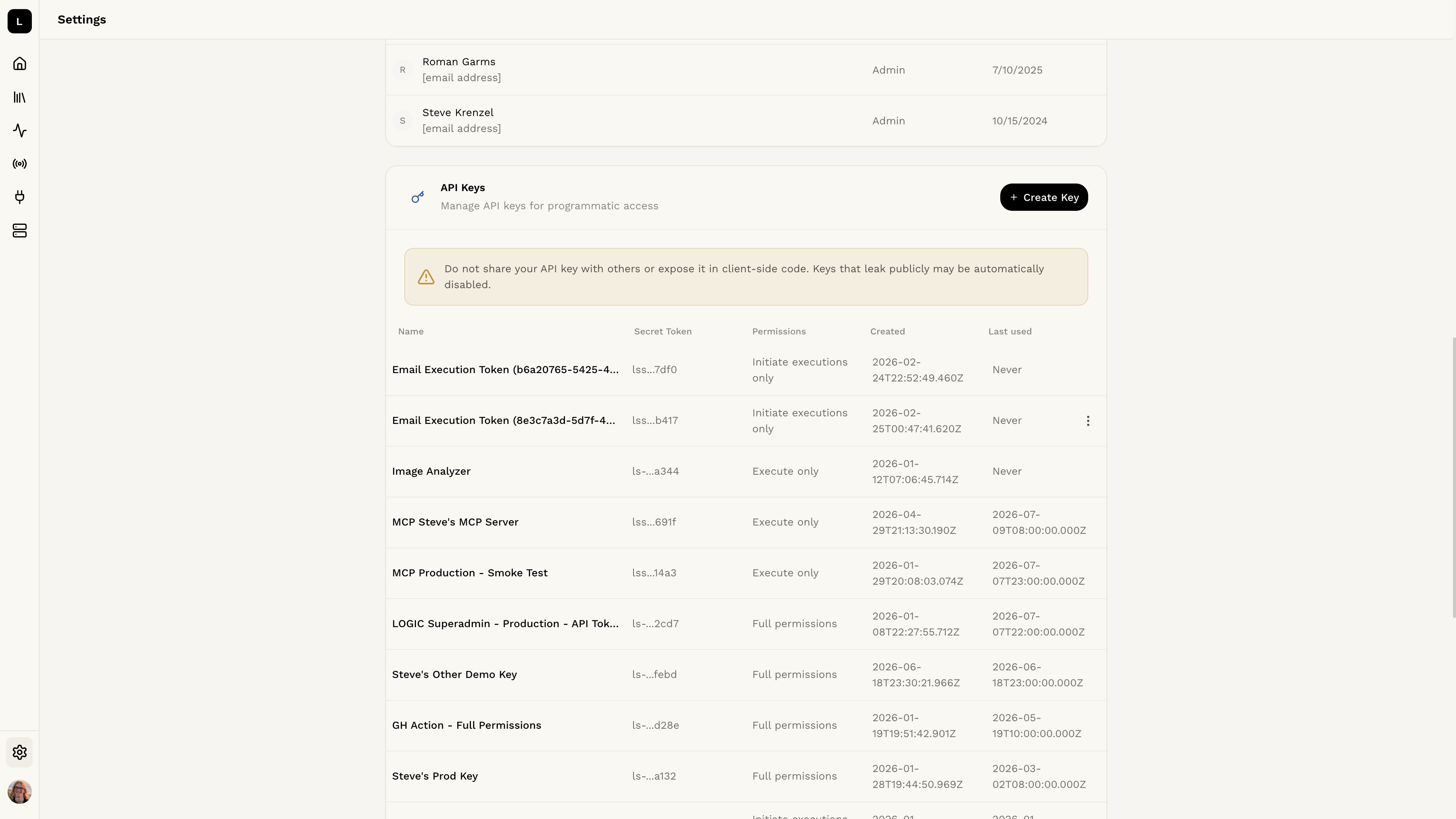 To create an API key, go to the [API Keys](https://app.logic.inc/settings/organization-settings/api-keys) page in the Logic Dashboard. Click on the **Create Key** button and follow the prompts to generate a new key.
Make sure to copy the key and store it in a secure location, as you will not be able to see it again after you close the dialog.
### Step 2: Setting the environment variable
You can set the environment variable in your terminal by running the following command:
```bash MacOS/Linux theme={null}
export LOGIC_API_TOKEN=ls-xxxxxxxxxxxxxxxxxxxxxxxxxxxxxxxxxxxxxxxxxxxxxxxx
```
```bash Windows theme={null}
set LOGIC_API_TOKEN=ls-xxxxxxxxxxxxxxxxxxxxxxxxxxxxxxxxxxxxxxxxxxxxxxxx
```
Note that setting the environment variable this way will only persist for the current terminal session. If you open a new terminal window, you will need to set the environment variable again.
To set the environment variable permanently, you can add the above command to your shell configuration file (e.g., `.bashrc`, `.bash_profile`, or `.zshrc` for MacOS/Linux, or `System Properties` for Windows).
### Step 3: Verifying the environment variable
Verify your environment variable is set correctly by running the following command in your terminal:
```bash MacOS/Linux theme={null}
echo $LOGIC_API_TOKEN
```
```bash Windows theme={null}
echo %LOGIC_API_TOKEN%
```
If this returns your API key, you have correctly set your environment variable.
## Try Making a Request
Now that you have your API token set up, you can try making a request to the Logic API.
Learn more about how to execute an agent using the API in the [Executing an
Agent](/api-reference/executions/executing) section.
If you need more information about how agents work in the API, check out the `Input Schema` and `Output Schema` sections of the API Documentation.
To create an API key, go to the [API Keys](https://app.logic.inc/settings/organization-settings/api-keys) page in the Logic Dashboard. Click on the **Create Key** button and follow the prompts to generate a new key.
Make sure to copy the key and store it in a secure location, as you will not be able to see it again after you close the dialog.
### Step 2: Setting the environment variable
You can set the environment variable in your terminal by running the following command:
```bash MacOS/Linux theme={null}
export LOGIC_API_TOKEN=ls-xxxxxxxxxxxxxxxxxxxxxxxxxxxxxxxxxxxxxxxxxxxxxxxx
```
```bash Windows theme={null}
set LOGIC_API_TOKEN=ls-xxxxxxxxxxxxxxxxxxxxxxxxxxxxxxxxxxxxxxxxxxxxxxxx
```
Note that setting the environment variable this way will only persist for the current terminal session. If you open a new terminal window, you will need to set the environment variable again.
To set the environment variable permanently, you can add the above command to your shell configuration file (e.g., `.bashrc`, `.bash_profile`, or `.zshrc` for MacOS/Linux, or `System Properties` for Windows).
### Step 3: Verifying the environment variable
Verify your environment variable is set correctly by running the following command in your terminal:
```bash MacOS/Linux theme={null}
echo $LOGIC_API_TOKEN
```
```bash Windows theme={null}
echo %LOGIC_API_TOKEN%
```
If this returns your API key, you have correctly set your environment variable.
## Try Making a Request
Now that you have your API token set up, you can try making a request to the Logic API.
Learn more about how to execute an agent using the API in the [Executing an
Agent](/api-reference/executions/executing) section.
If you need more information about how agents work in the API, check out the `Input Schema` and `Output Schema` sections of the API Documentation.